Magic Trackpad gestures on Windows: what your model supports
Your Magic Trackpad's model determines which features Tenon adds. The USB-C trackpad supports built-in multi-finger gestures; the Lightning trackpad supports scrolling, clicking and dragging.
Check your model first
Tenon supports USB-C Magic Trackpad and Lightning Magic Trackpad 2, over Bluetooth or USB. The original AA-battery Magic Trackpad is not supported. You need Windows 10 22H2 or Windows 11 on an x64 PC; Windows on ARM is not supported. Check the supported-device list for connection and battery details.
USB-C trackpad: built-in gestures
With Tenon Pro or an active trial, the USB-C model has these actions:
- Two-finger scroll: smooth vertical and horizontal scrolling.
- Two-finger swipe: back and forward between pages.
- Three-finger swipe left or right: switch virtual desktops.
- Three-finger swipe up: open Task View.
- Three-finger swipe down: show the desktop.
- Taps: one finger to click, two fingers to right-click, three fingers to middle-click.
Press to click, or hold the press while moving to drag. Click firmness in Tenon sets how hard you press to click.
Lightning trackpad: scrolling, clicking and dragging
The Lightning model supports pointer movement, two-finger scrolling, press to click and drag. Tenon does not support the swipe and tap gestures above on this model.
Set up gestures in Tenon
- Connect by USB, or pair in Windows Bluetooth settings. Follow the connection guide if needed.
- Install Tenon and open its Magic Trackpad panel.
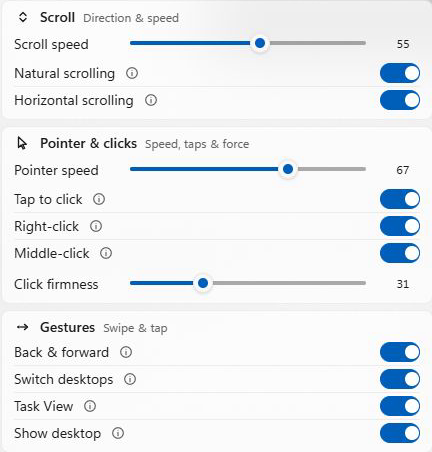
- Adjust Scroll speed and Natural scrolling. On the USB-C trackpad, use the Gestures section to enable or disable the built-in actions, and Pointer & clicks for taps and Click firmness.
Frequently asked
Which Magic Trackpad gestures work with Tenon on Windows?
USB-C Magic Trackpad supports two-finger scrolling and navigation, three-finger desktop gestures, tap-to-click and pressure-based clicking. On Lightning Magic Trackpad 2, Tenon supports scrolling, clicking and dragging. Both work over Bluetooth or USB; the original AA-battery trackpad is not supported.
Can I change the gesture actions in Windows Settings?
No. Tenon uses its own gesture engine, not Windows Precision Touchpad, so Windows Settings does not change its gestures. Turn the built-in gestures on or off in Tenon’s Magic Trackpad panel. Custom gesture-to-action mappings are not available.