How to fix Magic Mouse scrolling on Windows
Windows pairs with a Magic Mouse for pointing and clicking, but scrolling needs a driver that supports your mouse model. Apple's Boot Camp drivers (on Intel Macs only), Magic Utilities and Tenon each add scrolling.
Why Magic Mouse scrolling doesn't work on Windows
The Magic Mouse has no scroll wheel. It scrolls when you slide a finger across its top surface, and Windows has no built-in driver that reads that surface.
Method 1: Apple Boot Camp drivers (free)
If you run Windows through Boot Camp on a supported Intel Mac, use Apple's Windows support software instructions to download or repair the drivers for that Mac.
Apple also offers some older Boot Camp packages as direct downloads. Those packages list specific Mac models and older Windows versions. They are drivers for those Macs, not for other Windows PCs, and they may not work with a USB-C or Lightning Magic Mouse.
Method 2: a third-party scrolling utility
Magic Utilities is a paid third-party driver that adds scrolling and other settings for Apple input devices. Check its supported models and Windows versions before installing it. Tenon vs Magic Utilities compares prices and features.
Method 3: Tenon
Tenon adds smooth scrolling and built-in surface gestures to every Magic Mouse over Bluetooth. It requires Windows 10 22H2 or Windows 11 on an x64 PC. Windows on ARM is not supported.
- Download Tenon and run the installer.
- To pair the original AA-battery mouse, use Windows Bluetooth settings. For other models, use Tenon or Windows settings. The connection guide gives the steps.
- Open Tenon, select Magic Mouse and adjust Scroll speed.
- If resting a finger scrolls a list or menu, increase Scroll start. It sets how far your finger moves before scrolling begins.
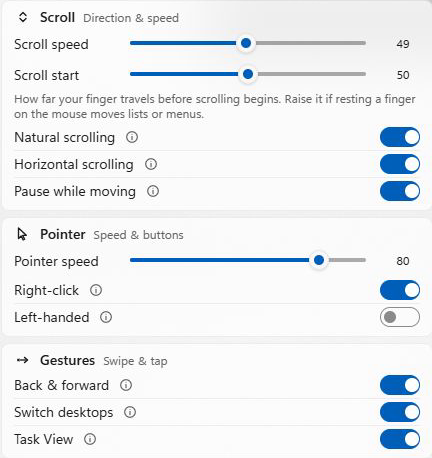
Scrolling and gestures are Pro features. Tenon's 30-day trial includes them and needs no account or card. After the trial, the mouse keeps pointer movement and clicks without Pro, and Tenon still shows its battery and connection status. Pro pricing lists the plans.
If scrolling worked and then stopped
- Re-pair the mouse: remove it from Bluetooth settings, then add it again.
- Check the battery: a Magic Mouse with a low battery can stay connected but behave erratically.
- Remove duplicate entries: if the mouse appears twice in Bluetooth, delete both and re-pair.
- Reinstall the driver after a major Windows update, which can replace it.
- Check your Tenon plan: Tenon's scrolling stops when the trial ends without Pro. The Account screen in Tenon shows your plan.
Frequently asked
Why is my Magic Mouse not scrolling on Windows?
Windows has no built-in driver for the Magic Mouse touch surface, so a paired mouse moves the pointer and clicks but does not scroll. Scrolling needs a driver such as Tenon, which supports all Magic Mouse models. If scrolling worked and then stopped, re-pair the mouse and check its battery.
Does Magic Mouse scrolling work on Windows 11?
Yes, with a driver that supports your mouse and Windows version. Tenon runs on Windows 11 and Windows 10 22H2 on x64 PCs. It does not support Windows on ARM.