How to remap Command to Control on a Magic Keyboard on Windows
Microsoft PowerToys can remap Command to Ctrl for free, on every keyboard on the PC. Tenon remaps it on the Magic Keyboard only.
Why Cmd shortcuts break on Windows
Windows uses Ctrl where macOS uses Command for copy, paste, save and most other shortcuts. On Windows, the Magic Keyboard's Command key registers as the Windows key, so Cmd+C sends Win+C instead of a copy command.
Option 1: PowerToys Keyboard Manager (free)
To remap Command with PowerToys:
- Install Microsoft PowerToys from the Microsoft Store or GitHub.
- Open Keyboard Manager → Remap a key.
- Map the Windows key (the Magic Keyboard's Command key) to Ctrl. For a full swap, also map Ctrl to the Windows key.
- Click OK to apply. Cmd+C now sends Ctrl+C in every app.
The remap applies system-wide, so a laptop's built-in Windows key also becomes Ctrl.
Option 2: Tenon, on the Magic Keyboard only
Tenon's keyboard driver applies the remap to the Magic Keyboard alone, so other keyboards on the PC keep their usual keys.
- Install Tenon and connect the Magic Keyboard. The connection guide has the steps.
- In Tenon, select Magic Keyboard.
- Under Keys, turn on Use ⌘ for shortcuts.
- Reconnect the keyboard so the setting applies: switch it off and on for Bluetooth, or unplug and reconnect its USB cable.
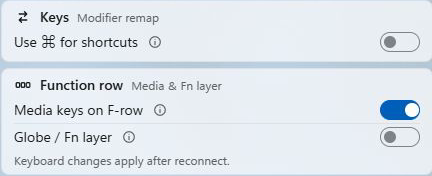
Control keeps sending Ctrl, so the keys are not swapped: while the setting is on, the Magic Keyboard has no Windows key. To open Start, press Cmd+Esc, which sends Ctrl+Esc. The setting applies in every app; there are no per-app settings. It is a Pro feature, included in the 30-day trial.
Frequently asked
How do I swap Command and Control on Windows?
Microsoft PowerToys Keyboard Manager can swap them for free, on every keyboard on the PC. On the Magic Keyboard only, Tenon’s Use ⌘ for shortcuts setting makes Command send Ctrl, while Control keeps sending Ctrl.
Can I make Mac keyboard shortcuts work on Windows?
Mostly. With Command sending Ctrl, Cmd+C, Cmd+V, Cmd+S and most other common shortcuts work as they do on a Mac. App switching still differs: Windows uses Alt+Tab, which is Option+Tab on the Magic Keyboard.